Installation Guide

Autodesk Setup Guide

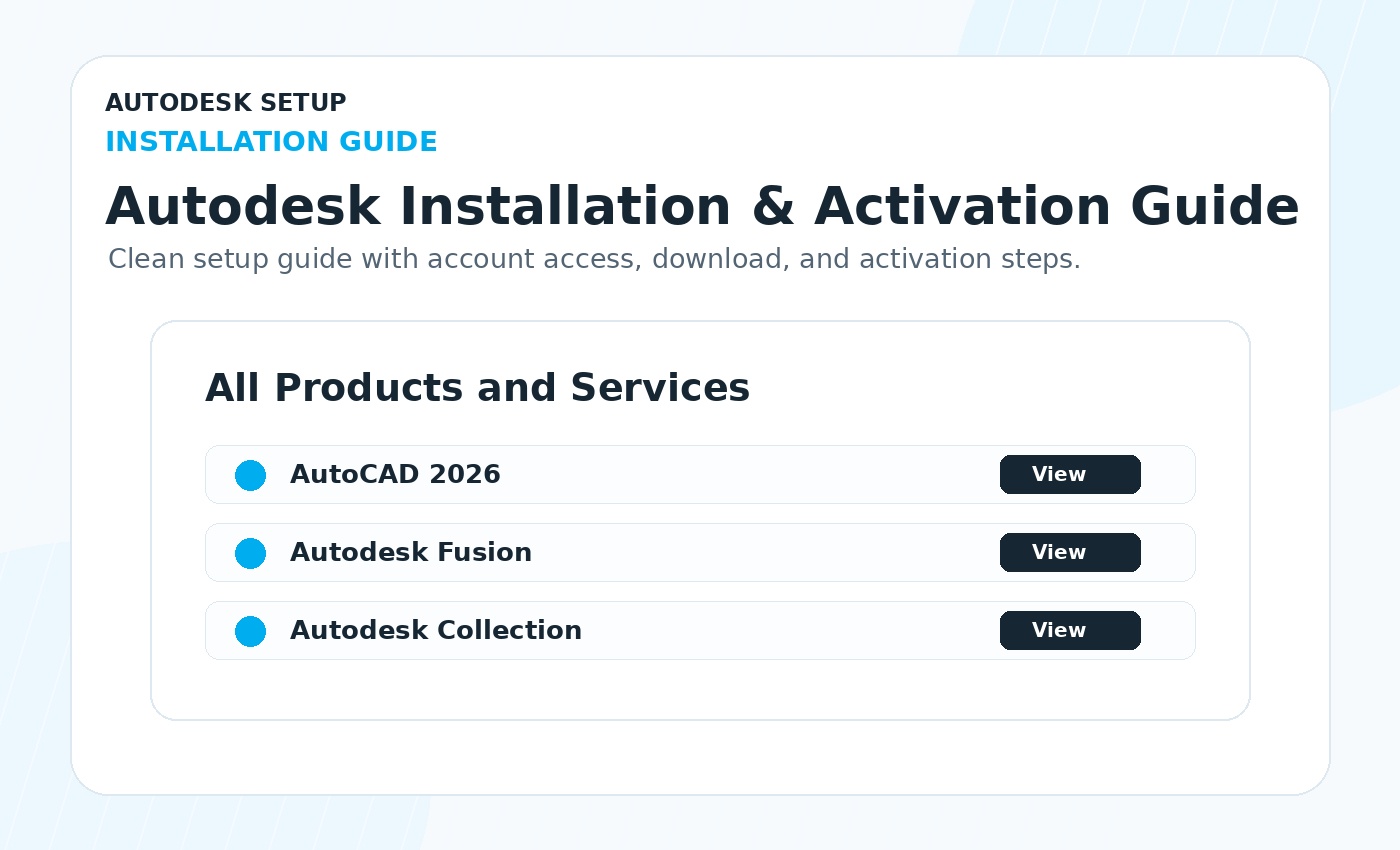
Install & Activate Your Autodesk Software

Follow this simple guide to accept your Autodesk invitation, access your account, download your product, and activate your software successfully.

Go to Autodesk AccountContact Support
Autodesk installation guide overview

Before You Start

Use the same email address provided during checkout. Your Autodesk access is connected to your Autodesk account after accepting the official invitation.

Step 1

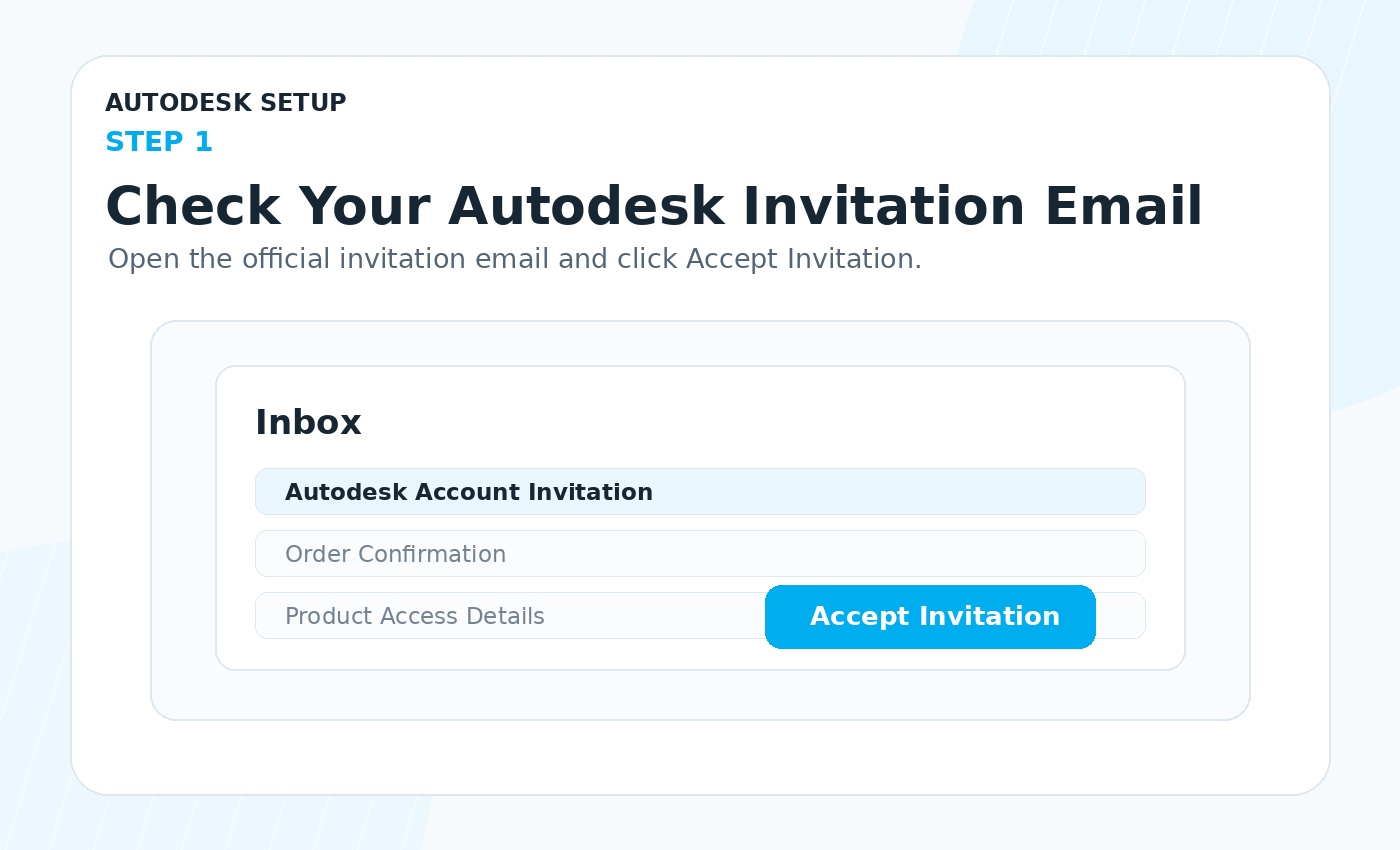
Check Your Autodesk Invitation Email

After your order is processed, you will receive an Autodesk invitation email. Open the email and click Accept Invitation.

Check Your Autodesk Invitation Email
Step 2

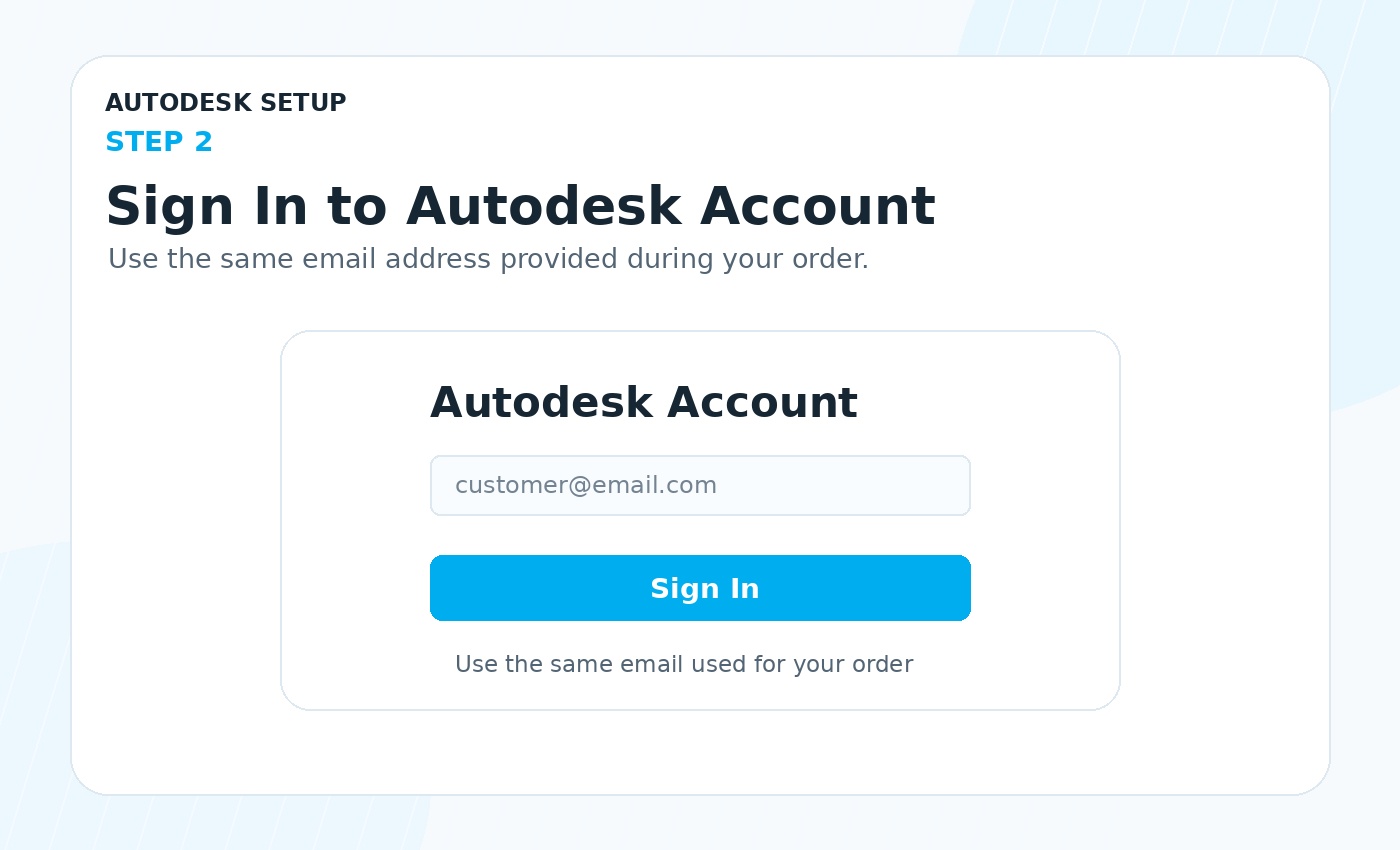
Sign In to Your Autodesk Account

Go to manage.autodesk.com and sign in using the same email address where you received the Autodesk invitation.

Sign In to Your Autodesk Account
Step 3

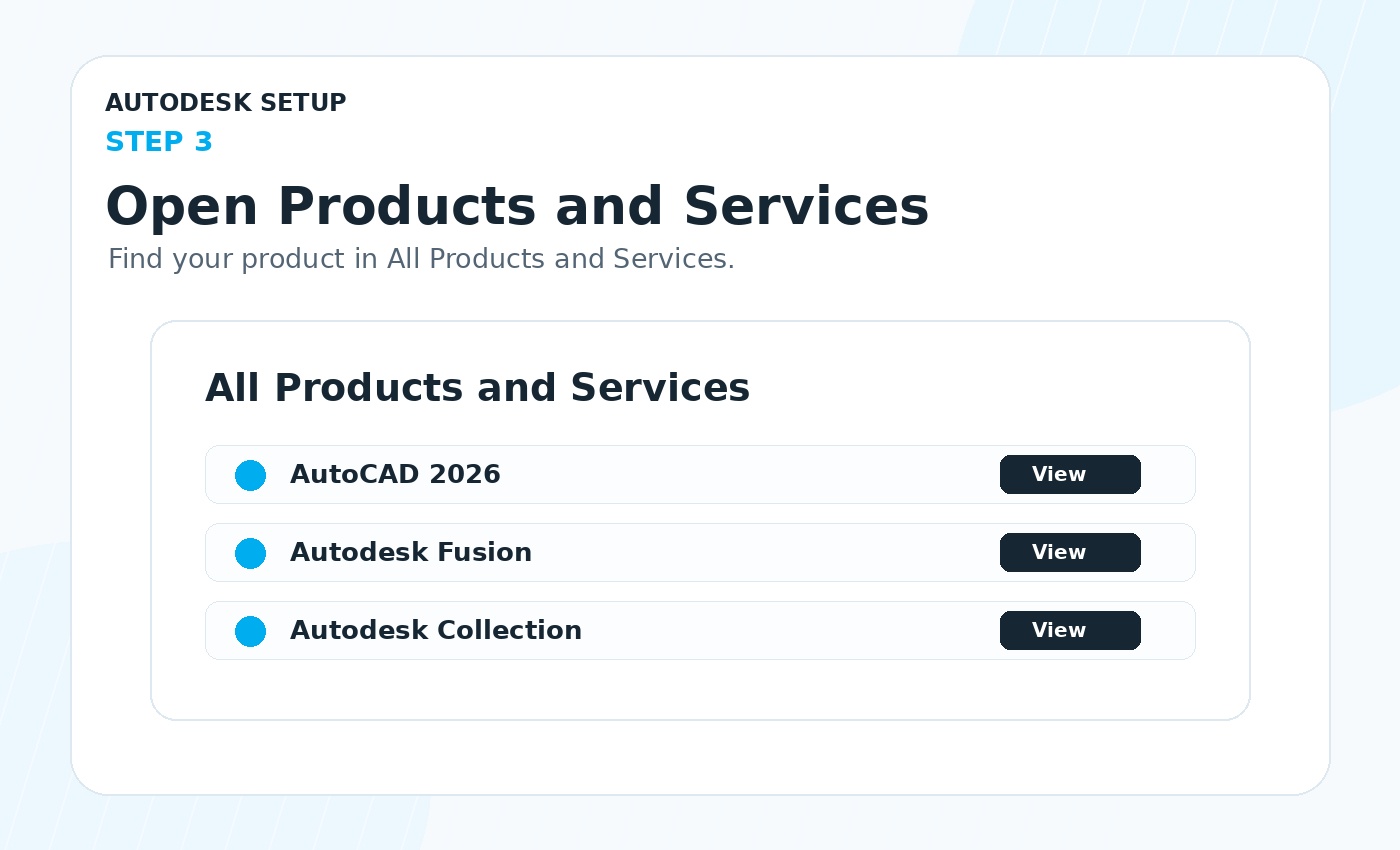
Open All Products and Services

Inside your Autodesk account, open All Products and Services. Find your product, choose the correct version, then select Windows or macOS.

Open All Products and Services
Step 4

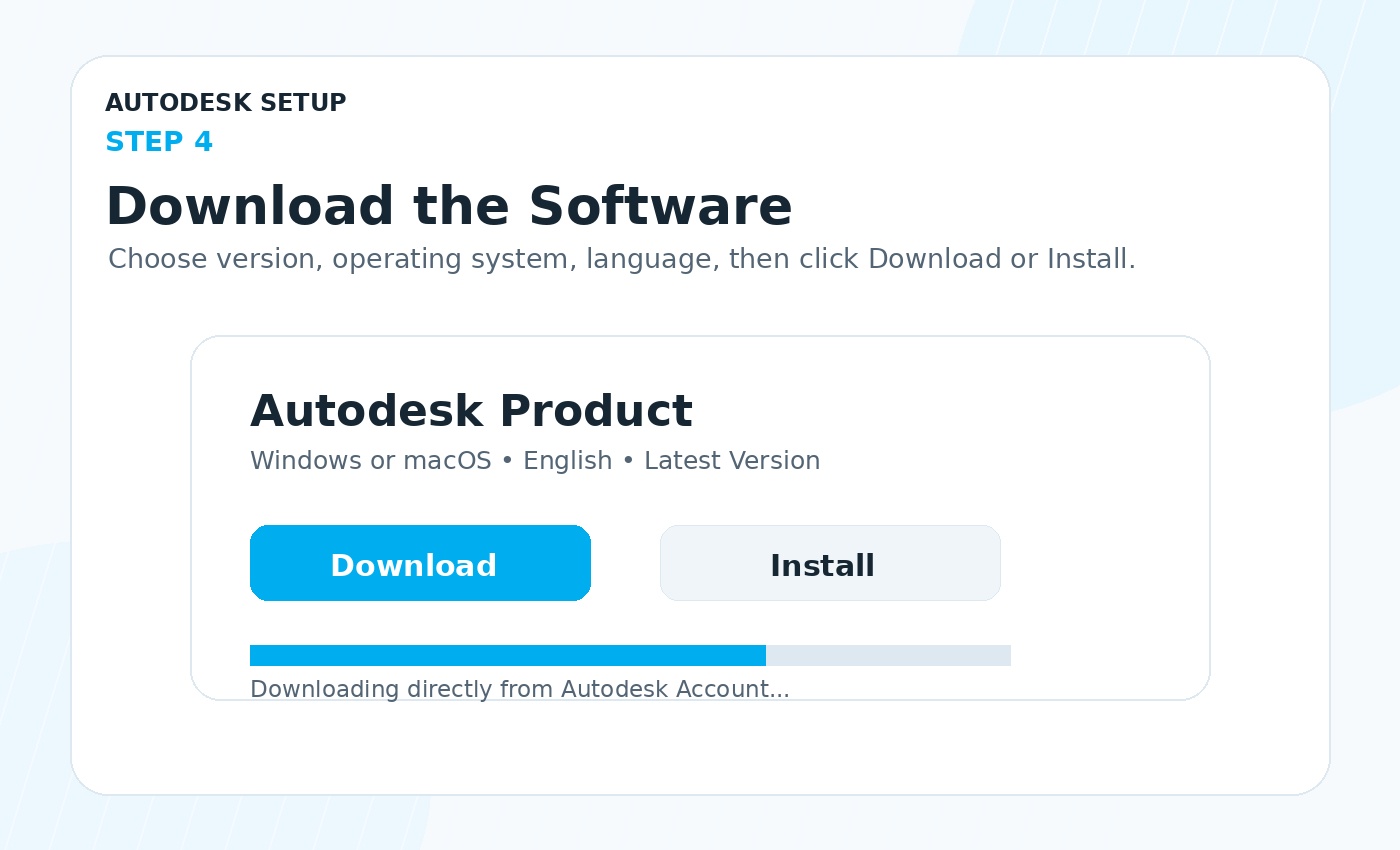
Download the Software

Click Install or Download next to your product. Keep your internet connection stable until the download is complete.

Download the Software
Step 5

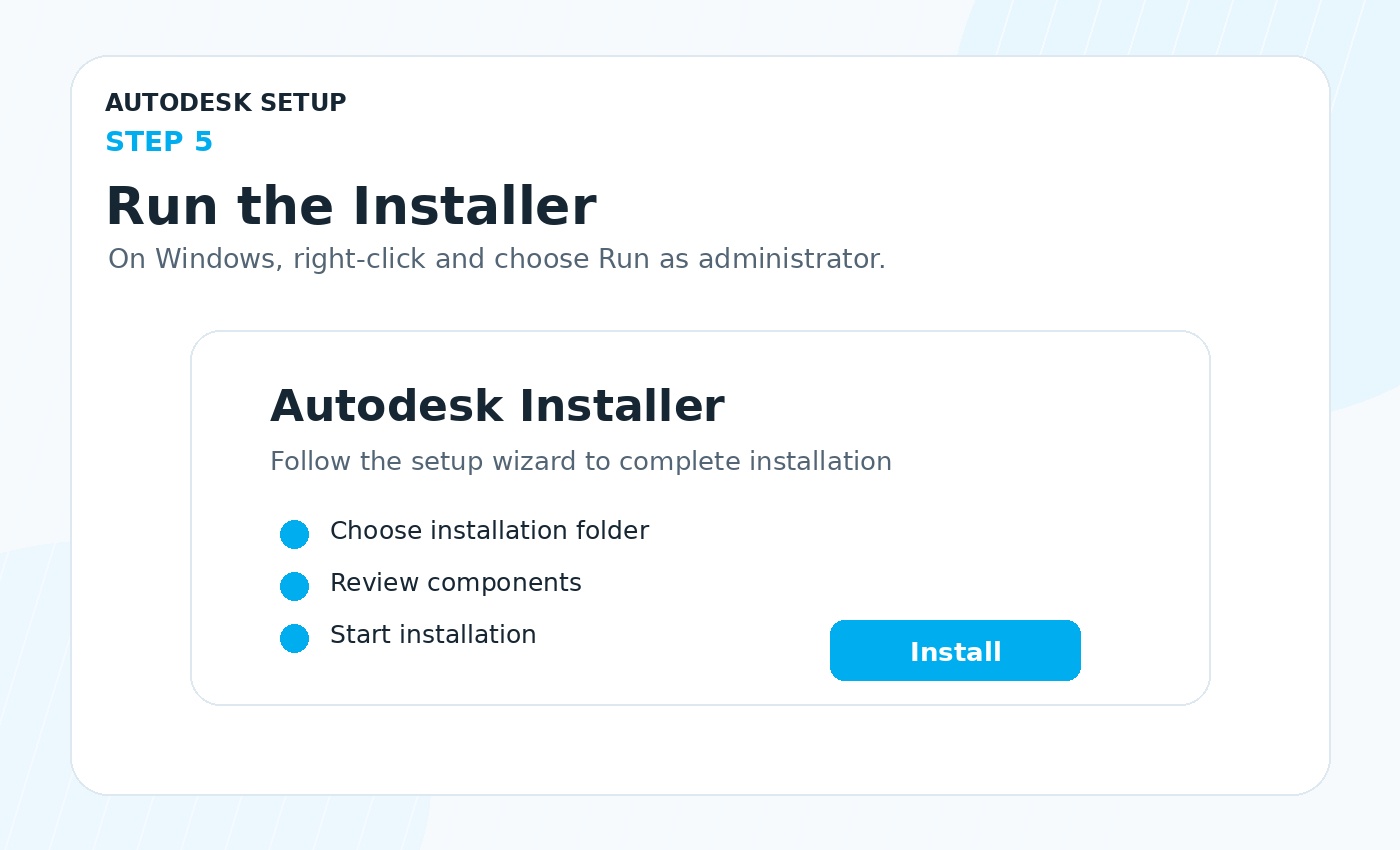
Run the Installer

For Windows, right-click the installer and choose Run as administrator. For macOS, open the downloaded file and follow the setup instructions.

Run the Installer
Step 6

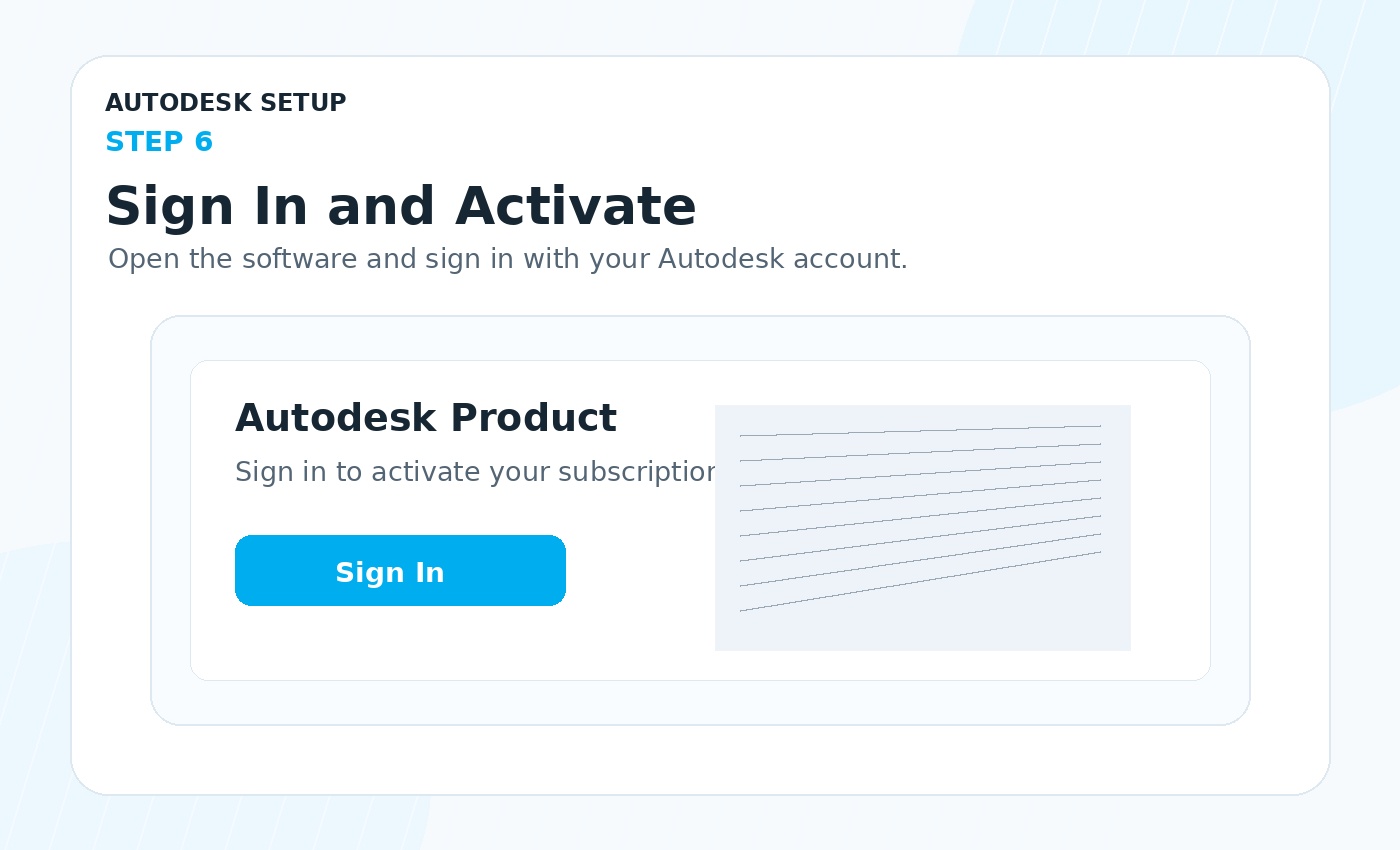
Sign In and Activate

After installation, open the Autodesk software and click Sign In. Use the same Autodesk account email and your software should activate automatically.

Sign In and Activate
Important: If you previously used a free trial with the same Autodesk account, the software may still show trial or expired access. Contact support and we will help you resolve it.

Need Installation Help?

Our support team can help with account access, download, installation, activation, and product access issues.

Email: support@degicad.store

Contact Support